

- 👁️ View Saved Formula
- 🎯 Purpose
- 📋 What You Can See
- Formula Header Information
- Formula Metadata
- Formula Code
- Version History
- Related Information
- 🔍 How to View a Formula
- From My Formulas List
- From Search
- From AI Conversations
- From Dashboard
- 🛡️ Read-Only Protection
- ⚙️ Available Actions in View Mode
- Copy Formula Code
- Export Formula
- Share Formula
- Print or Save as PDF
- Clone Formula
- View Version History
- View AI Explanation
- 📊 Visual Elements
- Status Badges
- Syntax Highlighting
- Section Dividers
- Line Numbers
- 🔐 Access Control
- 💡 Use Cases
- 1. Pre-Deployment Review
- 2. Knowledge Transfer
- 3. Code Review Sessions
- 4. Client Demonstrations
- 5. Compliance Documentation
- 6. Reference for New Formulas
- 7. Troubleshooting
- 🎓 Best Practices
- ⚡ Quick Actions Bar
- 🔄 Integration with Other Features
- ❓ Frequently Asked Questions
- 🎯 Tips for Effective Formula Review
- 📚 Related Documentation
👁️ View Saved Formula #
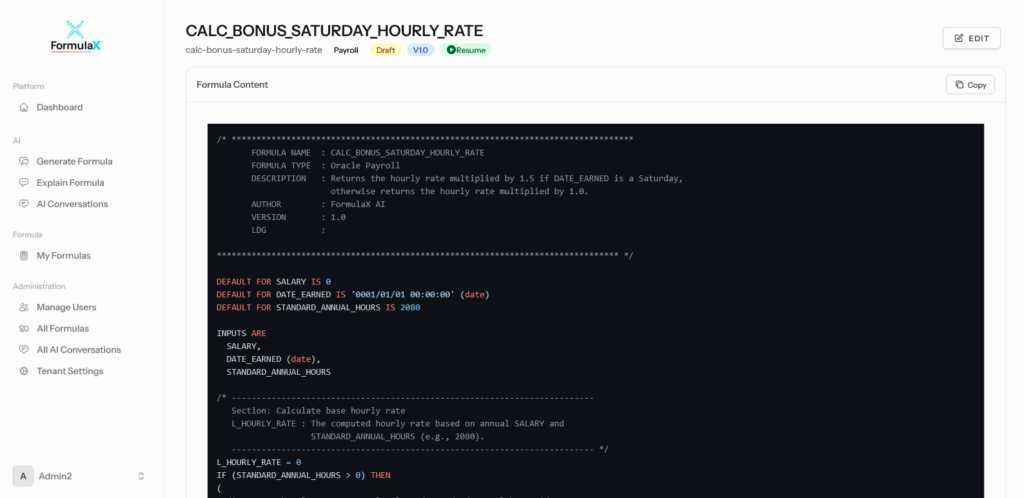
The View Saved Formula page provides a comprehensive, read-only view of any formula in your FormulaX library. This safe viewing mode allows you to inspect, verify, reference, and share formulas without any risk of accidental modifications, making it perfect for code reviews, audits, documentation, and knowledge sharing.
🎯 Purpose #
View Saved Formula is designed for:
Safe Review
- Inspect formula logic without edit permissions
- Review formulas before deployment to production
- Verify formulas meet business requirements
- Check compliance with organizational standards
Reference and Documentation
- Look up formula syntax for similar requirements
- Reference calculation logic for documentation
- Review input/output specifications
- Check formula metadata and properties
Collaboration
- Share formulas with stakeholders for review
- Present formulas to business users for validation
- Demonstrate formula logic to clients
- Support team members reviewing implementations
Audit and Compliance
- Provide read-only access for auditors
- Document formulas for compliance requirements
- Track what formulas are in use
- Maintain audit trail of formula details
📋 What You Can See #
When viewing a saved formula, FormulaX displays complete information in an organized, easy-to-read format:
Formula Header Information #
- Formula Code: Unique identifier (e.g.,
CALC_BONUS_SATURDAY_HOURLY_RATE) - Formula Name: Descriptive display name
- Formula Type: Payroll, Absence, Element, etc.
- Status: Draft, Active, or Archived
- Legislative Data Group (LDG): If applicable (e.g., UK, US, CA)
Formula Metadata #
- Description: Business purpose and use case
- Created By: Original author
- Created Date: When the formula was first created
- Last Modified By: Most recent editor
- Last Modified Date: When last changed
- Version: Current version number
- Tags: Category labels for searching
Formula Code #
- Complete Fast Formula Code: Full, syntax-highlighted code
- Inline Comments: Explanatory comments throughout (if added)
- Structure: Clear presentation of INPUTS, variables, logic, and RETURN statements
- Formatting: Properly indented, color-coded syntax
Version History #
- Complete changelog of all modifications
- Timestamps for each version
- Who made each change
- Description of changes (if provided)
- Ability to compare versions
Related Information #
- AI Conversation History: Link to original generation/optimization conversation
- Used In: Where the formula is deployed (if tracked)
- Dependencies: Other formulas or elements it references
- Test Cases: Sample inputs and expected outputs (if saved)
🔍 How to View a Formula #
From My Formulas List #
- Navigate to My Formulas from the main menu
- Browse or search for the formula you want to view
- Click on the formula name or the View icon (eye icon)
- The formula opens in View Saved Formula mode
From Search #
- Use the Quick Search (⌘K) at the top of any page
- Type the formula name or code
- Select the formula from search results
- Opens directly in view mode
From AI Conversations #
- Navigate to AI Conversations
- Find the conversation where the formula was created
- Click on the formula reference
- Opens in view mode
From Dashboard #
- From the Dashboard, check Recent Formulas
- Click on any formula
- Opens in view mode by default
🛡️ Read-Only Protection #
View mode ensures formula integrity by:
No Editing Allowed
- All fields are displayed but cannot be modified
- Code is displayed in a read-only code viewer
- Buttons for Save, Delete, or Modify are hidden
- Prevents accidental changes during review
Safe Navigation
- Use breadcrumbs to navigate away without worrying about unsaved changes
- No “unsaved changes” warnings because no changes are possible
- Can safely close the browser tab
Switch to Edit Mode
If you have edit permissions and need to modify the formula:
- Click the “EDIT” button in the top right
- Confirms you want to switch to edit mode
- Opens the formula in Edit Saved Formula page
⚙️ Available Actions in View Mode #
While you cannot edit the formula, you can:
Copy Formula Code #
- Copy button copies the entire Fast Formula code to clipboard
- Ready to paste directly into Oracle Cloud HCM
- Preserves formatting and comments
Export Formula #
- Download as
.txtfile - Download as
.xmlfor Oracle import - Export with or without comments
- Include metadata in export
Share Formula #
- Generate shareable read-only link
- Share with team members
- Set expiration for temporary access
- Track who has viewed (if enabled)
Print or Save as PDF #
- Print-friendly format
- Save as PDF for documentation
- Include all metadata and version history
- Professional format for presentations
Clone Formula #
- Create a copy to modify
- Original remains unchanged
- New copy opens in edit mode
- Useful for creating variations
View Version History #
- Compare current version with previous versions
- See what changed between versions
- Restore to previous version (if you have permissions)
- Track evolution of formula logic
View AI Explanation #
- Click “Explain” to get AI-powered explanation
- Opens explanation in new conversation
- Helps understand complex formulas
- Great for onboarding or documentation
📊 Visual Elements #
The View Saved Formula page includes several visual elements to enhance understanding:
Status Badges #
Color-coded badges show formula status:
- 🟢 Active (green) – Currently in use in production
- 🟡 Draft (yellow) – Under development, not deployed
- 🔴 Archived (red) – No longer in active use
- 🔵 VSD (blue) – Validated by Admin (if enabled – available for enterprise customers)
Syntax Highlighting #
The code viewer uses color coding:
- Blue: Keywords (IF, THEN, ELSE, RETURN)
- Green: Comments
- Orange: Strings and text values
- Purple: Numbers
- Red: Functions (GET_CONTEXT, DAYS_BETWEEN)
Section Dividers #
Clear visual separation of:
- Header information
- Formula metadata
- Input declarations
- Main logic
- Return statements
Line Numbers #
- Code displayed with line numbers
- Makes it easy to reference specific lines
- Helpful for discussing formula with team
🔐 Access Control #
View access is controlled by:
Permissions Levels
Owner Access
- Can view, edit, delete, and share
- Full control over formula
Team Access
- Can view and clone
- Cannot edit or delete
- Cannot change permissions
Read-Only Access
- Can only view
- Cannot clone, edit, or share
- Typically for auditors or stakeholders
Public Formulas
- Organizational templates
- Anyone in company can view
- Only administrators can edit
💡 Use Cases #
1. Pre-Deployment Review #
Before deploying a formula to Oracle Cloud HCM production:
- Review the complete logic
- Verify input/output specifications
- Check for edge case handling
- Confirm comments are adequate
- Validate against requirements
2. Knowledge Transfer #
When onboarding new team members:
- Show existing formulas as examples
- Explain how formulas are structured
- Reference for learning Fast Formula syntax
- Understand organizational standards
3. Code Review Sessions #
During team reviews:
- Display formula on shared screen
- Discuss logic and improvements
- No risk of accidental edits during meeting
- Easy to reference line numbers
4. Client Demonstrations #
When showing formulas to clients:
- Professional, clean presentation
- No overwhelming edit options
- Focus on formula functionality
- Export to PDF for client records
5. Compliance Documentation #
For audit and compliance:
- Generate read-only reports
- Document calculation methodology
- Prove compliance with regulations
- Maintain audit trail
6. Reference for New Formulas #
When creating similar formulas:
- View existing formula for structure
- Clone to create new version
- Reference calculation patterns
- Maintain consistency
7. Troubleshooting #
When formula produces unexpected results:
- Review the exact logic being used
- Verify correct version is deployed
- Check for recent changes in version history
- Compare with Oracle Cloud HCM deployed version
🎓 Best Practices #
Use View Mode By Default
- Open formulas in view mode first
- Only switch to edit when changes are needed
- Prevents accidental modifications
- Safer for quick reference
Review Before Editing
- Always view the current version first
- Understand existing logic completely
- Check version history for context
- Note any dependencies
Document During Review
- Take notes on formula purpose
- Document any issues found
- Capture improvement ideas
- Record questions for formula owner
Use for Training
- New team members should view many formulas
- Learn organizational patterns
- Understand naming conventions
- See real-world examples
Share Appropriately
- Use read-only links for external sharing
- Don’t give edit access unnecessarily
- Set expiration on temporary shares
- Track who has viewed sensitive formulas
⚡ Quick Actions Bar #
At the top of the view page, you’ll find quick action buttons:
| Button | Action | Description |
|---|---|---|
| EDIT | Switch to edit mode | Opens formula in Edit Saved Formula |
| Copy | Copy code to clipboard | Copies entire formula code |
| Clone | Create duplicate | Opens copy in edit mode |
| Export | Download formula | Export as TXT or XML |
| Explain | AI explanation | Get plain-English explanation |
| Print formula | Opens print dialog | |
| Share | Share with others | Generate read-only link |
🔄 Integration with Other Features #
Navigate to Related Pages:
Edit Formula
- Click “EDIT” button to switch to edit mode
- Opens in Edit Saved Formula page
- Requires edit permissions
Explain Formula
- Click “Explain” to get AI-powered explanation
- Creates new AI conversation
- Returns detailed breakdown
My Formulas
- Return to formula library
- See all your formulas
- Filter and search
AI Conversations
- View the original generation conversation
- See optimization history
- Review explanation sessions
❓ Frequently Asked Questions #
Q: Can I edit a formula in view mode?
A: No, view mode is read-only. Click the “EDIT” button to switch to edit mode if you have permissions.
Q: How do I know which version I’m viewing?
A: The version number is displayed in the metadata section. View full version history to see all versions.
Q: Can I see who else has viewed this formula?
A: If view tracking is enabled in your organization settings, yes. Check the activity log in formula details.
Q: What’s the difference between View and Edit mode?
A: View mode is read-only with no ability to change anything. Edit mode allows modifications, saving, and version updates.
Q: Can I copy just part of the formula code?
A: Yes, select the text you want in the code viewer and use Ctrl+C (or Cmd+C on Mac) to copy.
🎯 Tips for Effective Formula Review #
Check These Key Areas:
✅ Formula Purpose – Does the description match what the code does?
✅ Input Validation – Are null values and invalid inputs handled?
✅ Business Logic – Does it match documented requirements?
✅ Edge Cases – Are unusual scenarios covered?
✅ Comments – Is the code adequately documented?
✅ Variable Names – Are they clear and follow conventions?
✅ Return Values – Are all return paths correct?
✅ Performance – Any obvious inefficiencies?
📚 Related Documentation #
- My Formulas: Browse and manage all your formulas
- Edit Saved Formula: Modify formulas with version control
- Explain Formula: Get AI-powered explanations of formula logic
- Generate or Optimize Formula: Create or improve formulas with AI
- Quick Start Guide: Learn formula best practices
Need help? Contact MKSK Consulting Support or create a support ticket from the Support Features section.


