

- ✏️ Edit Saved Formula
- 🎯 What You Can Do
- 🚀 How to Access Edit Mode
- 📝 The Edit Page Layout
- ✏️ Making Changes
- Direct Editing
- 💾 Saving Your Changes
- 1. Save (Update Current Version)
- 2. Save as New Version
- 3. Save As (Clone)
- 🔄 Version Control
- 🛡️ Safety Features
- 🎯 Best Practices
- 🔍 Integration with Other Features
- ❓ Frequently Asked Questions
- 📚 Related Pages
✏️ Edit Saved Formula #
The Edit Saved Formula page is where you modify existing formulas in your FormulaX library. This powerful editing workspace lets you update manually formula logic, fix errors, improve performance, and manage metadata—all while maintaining complete version control and validation.
🎯 What You Can Do #
Modify Formula Details
- Update formula name and description
- Change formula type or status
- Adjust legislative data group (LDG) settings
- Add or edit tags for better organization
Edit Formula Logic
- Update calculation rules and business logic
- Fix syntax errors or compilation issues
- Add or remove input values
- Refine conditional logic and calculations
Enhance Documentation
- Add inline comments for clarity
- Update descriptions and notes
- Document changes and reasons
- Improve maintainability for team members
Manage Versions
- Save changes to current version
- Create new versions to preserve history
- Compare versions to see what changed
- Revert to previous versions if needed
🚀 How to Access Edit Mode #
You can open a formula for editing from several places:
From My Formulas
- Navigate to My Formulas from the main menu
- Find the formula you want to edit
- Click the Edit button or the formula name
- Formula opens in Edit mode
From View Mode
- If you’re viewing a formula in read-only mode
- Click the “EDIT” button in the top right corner
- Formula switches to Edit mode
From Dashboard
- Check Recent Formulas on your Dashboard
- Click on the formula name
- Click “Edit” to start editing
From Search
- Use Quick Search (⌘K) at the top of any page
- Type the formula name
- Select it from results to open in edit mode
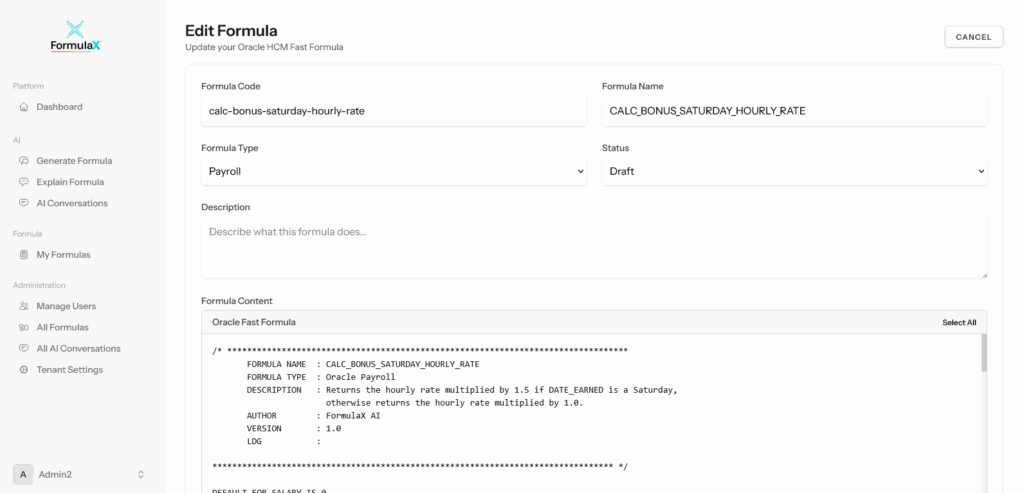
📝 The Edit Page Layout #
When you open a formula for editing, you’ll see:
Header Section
- Formula Code (unique identifier – read-only after initial creation)
- Formula Name (editable display name)
- Formula Type dropdown (Payroll, Absence, Element, etc.)
- Status dropdown (Draft or Active)
- Legislative Data Group dropdown (if applicable)
Description Area
A text field where you can describe:
- What the formula does
- Business context and use case
- Any special requirements or notes
- Contact information for questions
Formula Content Editor
A large editing area displaying:
- Your complete Fast Formula code
- Syntax highlighting for readability
- Line numbers for easy reference
- Real-time error detection
Action Buttons
- Save: Update the current version
- Save as New Version: Create a new version entry
- Validate: Check for errors before saving
- Cancel: Discard changes and exit
✏️ Making Changes #
Direct Editing #
Simply click in the formula content area and:
- Type to add new logic
- Delete unwanted sections
- Modify existing calculations
- Update variable names
- Change input parameters
The editor provides:
- Syntax highlighting for easier reading
- Automatic indentation
- Line numbers for navigation
- Search and find functionality
- Undo/redo support
#
💾 Saving Your Changes #
You have three save options:
1. Save (Update Current Version) #
- Click the “Save” button
- Updates the existing formula
- Changes the “Last Modified” timestamp
- Records who made the change
- Use this for minor updates and fixes
2. Save as New Version #
- Click “Save as New Version”
- Creates a new version entry in the history
- Preserves the previous version
- Allows you to add version notes explaining the changes
- Recommended for significant modifications
When to use new versions:
- Major logic changes
- Updating business rules
- Performance improvements
- Changes that need approval
- When you want to easily revert if needed
3. Save As (Clone) #
- Click “Save As” or “Clone”
- Creates a completely new formula
- Requires a new unique formula code
- Original formula remains unchanged
- Useful for creating regional variants or templates
🔄 Version Control #
Every time you save, FormulaX tracks:
Version History
- All previous versions are preserved
- Timestamp of each change
- Who made each modification
- Version notes (if added)
Compare Versions (coming soon)
- Select two versions to compare
- See exactly what changed
- Understand the evolution of the formula
- Helps with troubleshooting
Restore Previous Versions
- View any historical version
- Restore an older version if needed
- Previous version becomes the current version
- Creates a new version entry
This complete audit trail helps with:
- Compliance and documentation
- Troubleshooting issues
- Understanding why changes were made
- Team collaboration and handoffs
🛡️ Safety Features #
Confirmation Prompts
- Confirms before discarding unsaved changes
- Asks before overwriting versions
- Prevents accidental data loss
Edit Locking (if enabled)
- Only one person can edit at a time
- Others see “Currently being edited by [Name]”
- Prevents conflicting changes
- Automatic unlock after saving or timeout
🎯 Best Practices #
Before Editing
- ✅ Review the current version thoroughly
- ✅ Check version history for context
- ✅ Understand why the formula works the way it does
- ✅ Plan your changes before starting
While Editing
- ✅ Make one change at a time
- ✅ Validate frequently
- ✅ Add comments to explain complex logic
- ✅ Use meaningful variable names
After Editing
- ✅ Add version notes explaining what changed
- ✅ Test in a development environment first
- ✅ Update the description if the purpose changed
For Major Changes
- ✅ Save as New Version (not just Save)
- ✅ Add detailed version notes
- ✅ Test thoroughly before production deployment
🔍 Integration with Other Features #
Continue with AI
- Use AI Conversations to refine the formula
- Ask questions about specific sections
- Get suggestions for improvements
- Request explanations of complex logic
View Changes
- Switch to View Saved Formula to see read-only version
- Compare with original before saving
- Share with stakeholders for review
Deploy to Oracle
- Once edited and validated, copy the formula
- Paste into Oracle Cloud HCM
- Deploy to your production environment
Track in My Formulas
- All edited formulas remain in your My Formulas library
- Version history is always accessible
- Easy to find and edit again later
❓ Frequently Asked Questions #
Q: Can I edit formulas created by others?
A: Only if they’ve shared edit permissions with you or if it’s an organizational template.
Q: What happens if I click Cancel after making changes?
A: Your changes are discarded and the formula returns to its previous state. You’ll be asked to confirm before changes are lost.
Q: Can I undo changes after saving?
A: Yes, if you saved as a new version. Use Version History to restore the previous version.
Q: How do I know if my changes broke the formula?
A: Click “Validate Formula” before saving. It will identify any errors or issues.
Q: Can multiple people edit the same formula simultaneously?
A: No, if edit locking is enabled. Only one person can edit at a time to prevent conflicts.
Q: Should I save or save as new version?
A: Use Save for minor fixes and typos. Use Save as New Version for any logic changes or significant modifications.
📚 Related Pages #
- View Saved Formula: Review formulas in read-only mode
- My Formulas: Browse and manage your formula library
- Generate or Optimize Formula: Create new formulas or improve existing ones
- AI Conversations: Continue refining formulas with AI assistance
- Quick Start Guide: Learn best practices for formula development
Need help? Contact MKSK Consulting Support or create a support ticket from the Support Features section.


